
OpenCode
OpenCode integration guide for Routescope
Keep these values handy
OpenCode Desktop connects to Routescope through a custom provider. The five key fields are:
- Provider ID: recommended value
routescope - Display Name: recommended value
Routescope - Base URL:
https://api.routescope.ai/v1 - API Key: the full
sk-...secret - Model: a model enabled for your account, such as
gpt-5.4
Step 1: Create a key in Routescope
- Sign in to Routescope.
- Open Token Management.
- Click
Add Tokenand save it. - In the token list, click
Copy Secretto get the fullsk-...value.
If you want OpenCode to be a separate integration scenario, create a dedicated token for it. That makes quota, permission, and usage troubleshooting much easier later.
Step 2: Parameter mapping
| OpenCode field | Value | Notes |
|---|---|---|
| Provider ID | routescope | The provider's unique identifier; lowercase is recommended |
| Display Name | Routescope | Only affects UI presentation |
| Base URL | https://api.routescope.ai/v1 | /v1 is required |
| API Key | sk-... | Use the full secret and keep the sk- prefix |
| Model | gpt-5.4 or similar | Replace it with a model available in your account |
Step 3: Open OpenCode settings
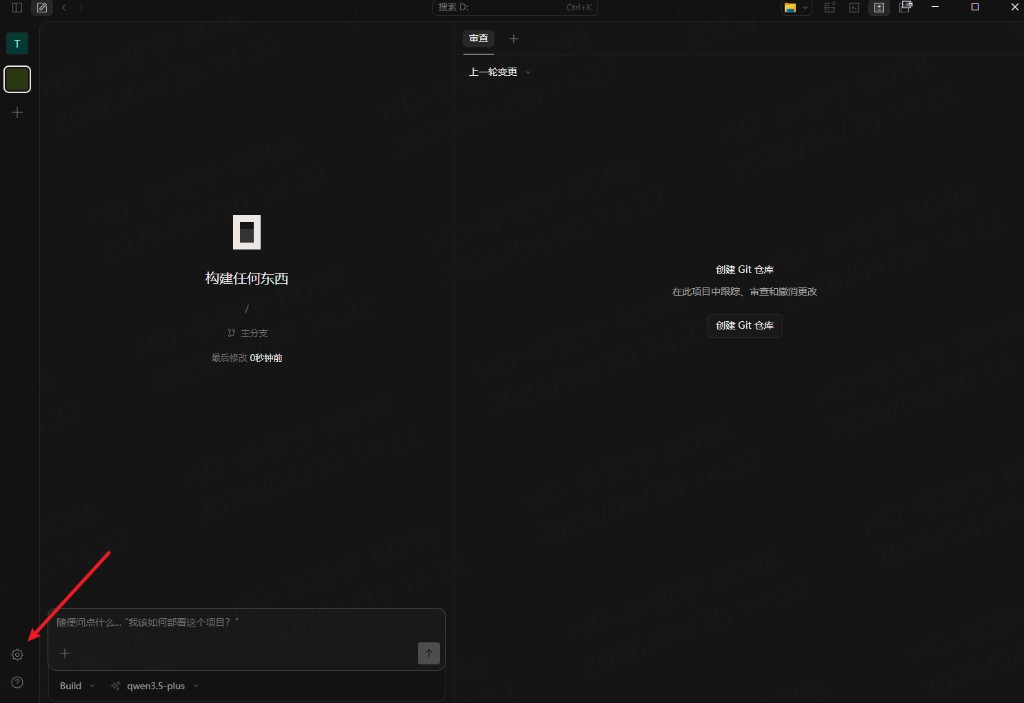
In OpenCode Desktop, click the settings button in the lower-left corner.
Step 4: Open the provider page
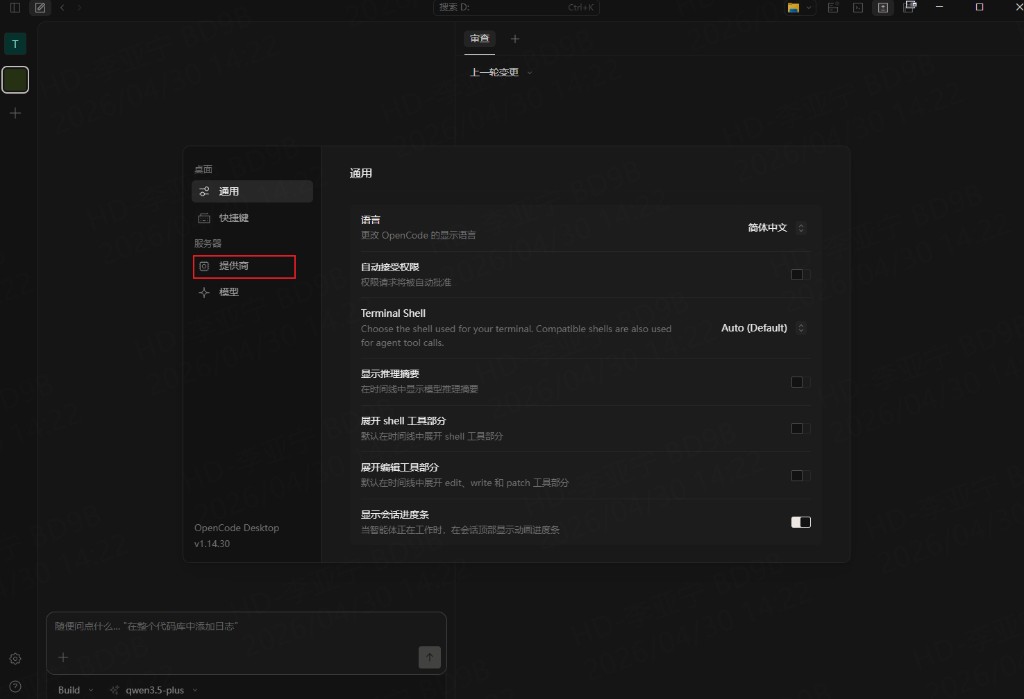
In settings, choose Providers from the left menu.
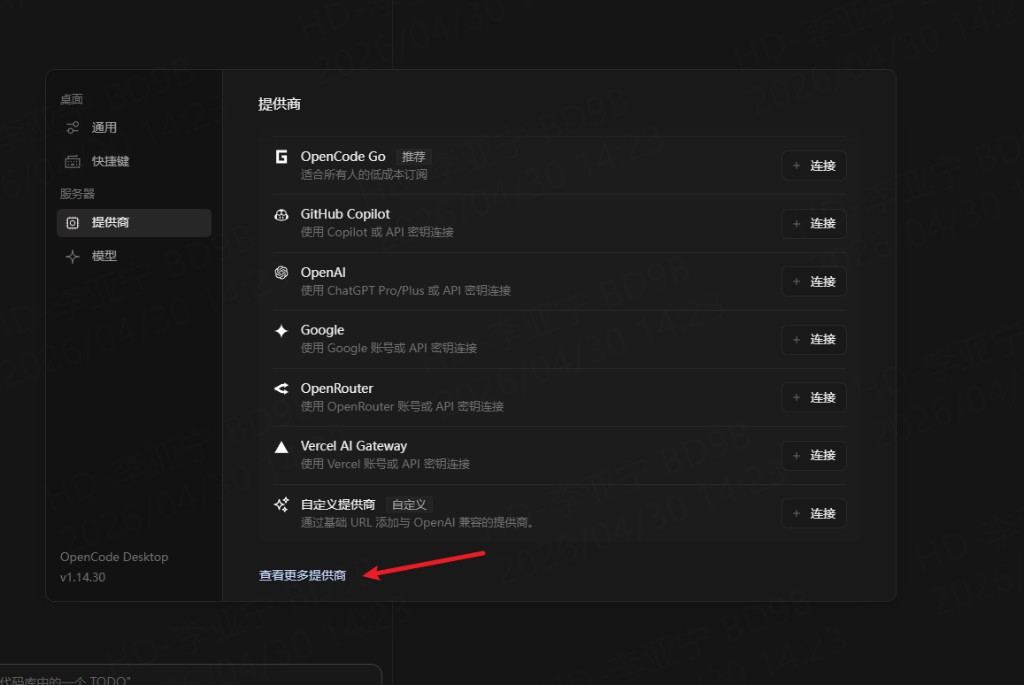
If you do not immediately see Custom Provider, click Show More Providers at the bottom.
Step 5: Choose the custom provider
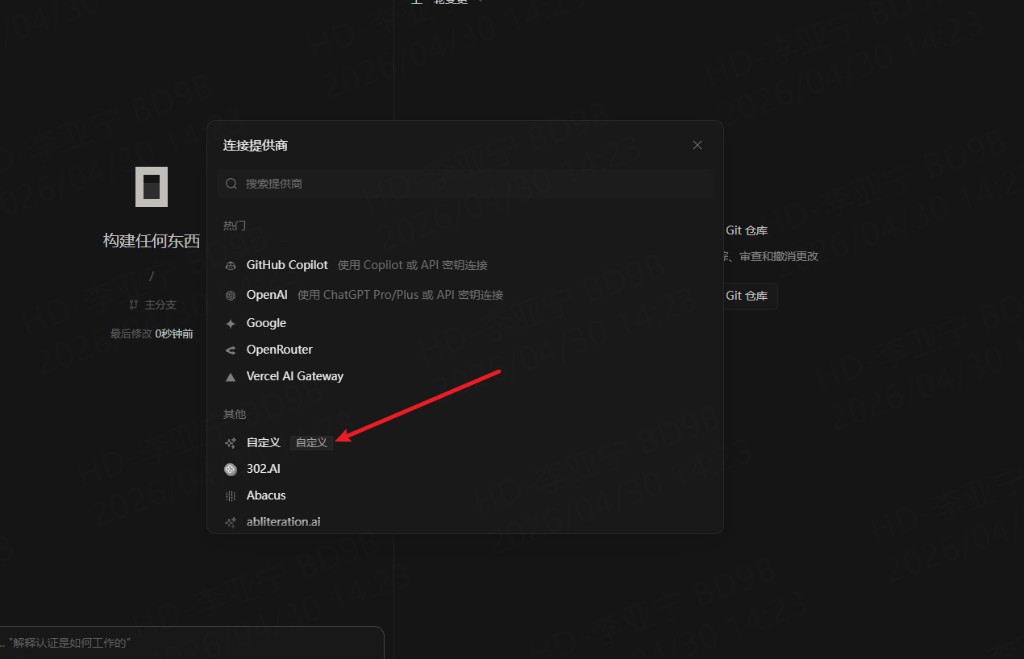
In the provider list, find Custom or Custom Provider, then click Connect.
Step 6: Fill in the Routescope configuration
Fill the custom provider form like this:
| Field | Value |
|---|---|
| Provider ID | routescope |
| Display Name | Routescope |
| Base URL | https://api.routescope.ai/v1 |
| API Key | sk-your-full-secret |
| Model ID | For example gpt-5.4 |
| Model Display Name | For example GPT-5.4 |
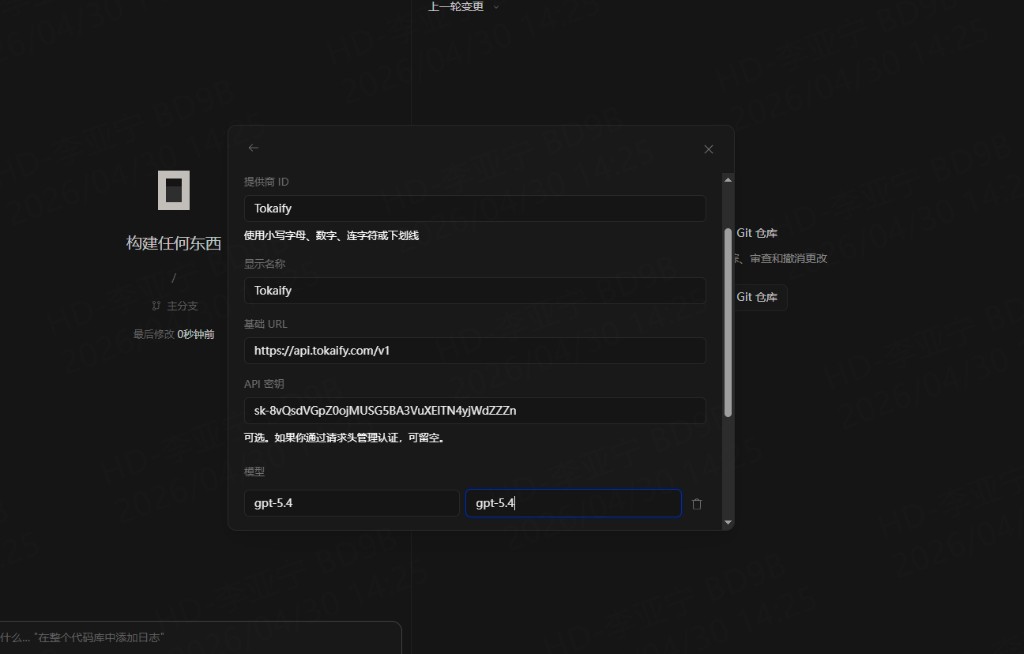
Use a model available to your account
gpt-5.4 is only an example. In practice, use a model name that is enabled for your Routescope account and allowed by the current token.
After filling in the form, click Submit or Connect. Once saved successfully, OpenCode will show Routescope as a new provider in the model selection list.
Step 7: Choose a model and verify
The simplest verification is to enter this inside OpenCode:
Reply with "OpenCode is connected to Routescope", then list the top-level directories in the current project.If it returns normally, the configuration is working.
FAQ
Should the Provider ID be Routescope or routescope
Use routescope. The Provider ID is an internal identifier, and many versions expect lowercase letters, digits, hyphens, or underscores. The display name can still be Routescope for readability in the UI.
What should I use for Base URL
Use:
https://api.routescope.ai/v1Do not use only https://api.routescope.ai, and do not accidentally duplicate it as https://api.routescope.ai/v1/v1.
What if I can't find the model I just added
Go back to Settings > Providers and confirm the custom provider was saved successfully. Then check that the model ID exactly matches a model name available in the Routescope console.
What should I do if I get 401 or 403
Check these items first:
- Whether the API key is the full
sk-...secret - Whether the Base URL is exactly
https://api.routescope.ai/v1 - Whether the model is allowed by the current token
- Whether the token is expired, disabled, or out of balance
Last updated on